How to Make a Digital Menu Board Interactive (Complete Guide)
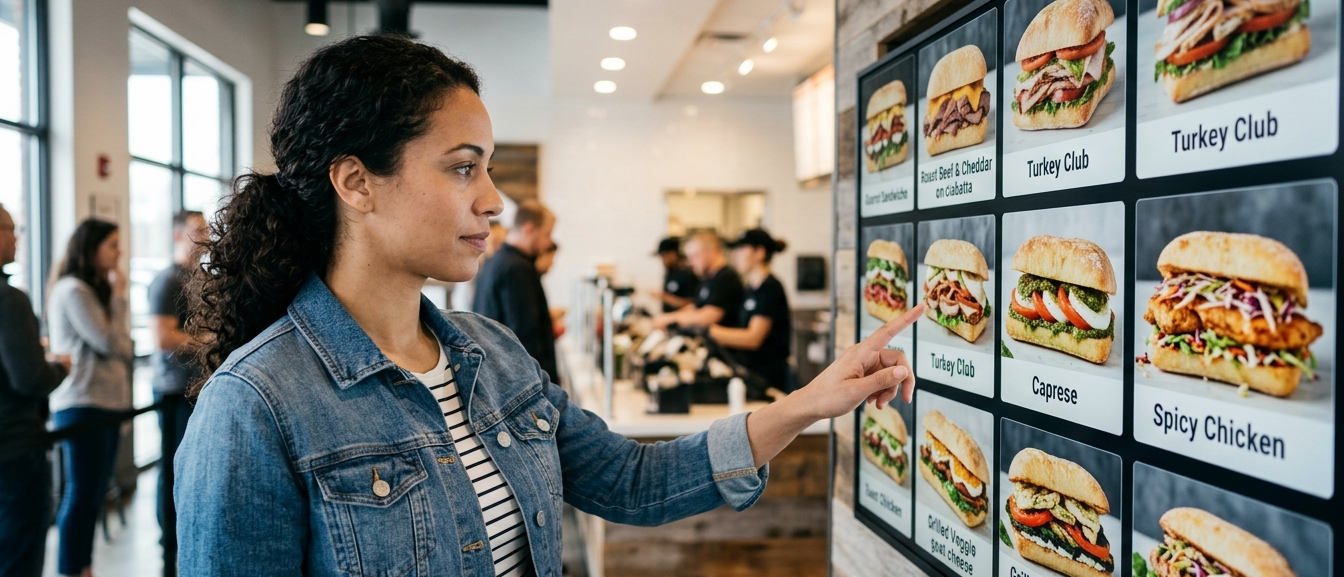
This article is a comprehensive guide for restaurants looking to upgrade their digital menu boards from passive displays to interactive systems.
So you've got a digital menu board that updates content and rotates promotions. That's a solid start. But what if your customers could actually interact with it? What if they could tap to explore menu items, filter by dietary preferences, build their own meals, or place orders directly—without waiting in line?
That's the difference between passive digital signage and a true interactive menu board. And the best part? You don't need to be a developer to make it happen.
In this guide, we'll walk you through exactly how to design and deploy interactive digital menu boards, from choosing the right hardware and software to integrating with your POS and ensuring accessibility. Let's dive in.
What Makes a Digital Menu Board "Interactive"?
An interactive digital menu board lets customers actively engage with content rather than passively viewing it. This could mean:
- Touchscreen exploration – Tapping to see nutritional info, ingredients, or portion sizes.
- Self-service ordering – Building meals and completing checkout without staff assistance.
- Dynamic filtering – Sorting menu items by allergens, dietary preferences, or price.
- Voice or gesture input – Placing orders hands-free via voice commands or contactless gestures.
- Real-time customization – Adjusting toppings, sides, or meal bundles directly on screen.
- Presence detection – Triggering personalized content when someone approaches.
While static digital menu boards simply display changing images or videos, interactive digital menu boards respond to user input in real time. That makes them more engaging, more informative, and - when done right - more capable of driving higher-value orders.
Why Add Interactivity to Your Digital Menu Boards?
Is interactivity really worth the effort? Here's what the data shows:
- Faster service: Self-service kiosks reduce wait times and free up staff to focus on food prep and customer service rather than order-taking.
- Better customer experience: 88% of diners prefer self-service menu boards at tables, and customers report they'd choose a self-ordering kiosk over waiting in line when there are more than four people ahead of them.
- Upselling opportunities: Interactive prompts can suggest add-ons, combos, or limited-time offers at the moment of decision, increasing average order value without feeling pushy.
Step 1: Choose the Right Hardware for Interactive Menu Boards
Before you design anything, you need the physical components that make interaction possible. Here's what to consider:
Touchscreens and Display Size
For interactive menus, touchscreen displays are the most intuitive input method. When selecting screens:
- Size: Counter-mounted ordering kiosks typically use 21–32" displays. Wall-mounted menu boards behind the counter often range from 43–55" for counter service or 65"+ for high-traffic fast-casual lines.
- Touch technology: Infrared (IR) 10-point or 20-point touch is the most common for commercial menu boards. It's durable, works with fingers or gloves, and supports multi-user interaction.
- Resolution: 4K UHD (3840×2160) is recommended for interactive menus where customers stand close to the screen. Sharp text is essential for readability.
- Brightness: Indoor environments need 400–700 nits. If your menu board faces windows or bright lighting, consider high-brightness displays (1,500–2,500 nits) to prevent washout.
- Commercial-grade panels: Consumer TVs aren't designed for 16/7 or 24/7 operation. Commercial displays are built for continuous use and include features like tempered anti-glare glass to withstand high-traffic environments.
Media Players and Computing Power
Your touchscreen needs a "brain" to run interactive content. You have a few options:
- External media players: Devices like Android media players, Windows PCs, or Raspberry Pi units connect to your display via HDMI.
- OPS (Open Pluggable Specification) modules: These slot directly into compatible commercial displays, eliminating external cables and creating a sleek, all-in-one kiosk. They offer the same computing power as external players but with easier installation and maintenance.
- System-on-Chip (SoC) displays: Some commercial screens include Android, Windows, or proprietary operating systems, such as Samsung Tizen, embedded directly in the panel. These are convenient but may have less processing power than dedicated media players.
Mounting and Physical Setup
How you mount your interactive menu board affects both usability and accessibility:
- Height: For ADA compliance, interactive elements should be within 15–48 inches from the floor to accommodate both wheelchair users and standing customers.
- Protrusion: Wall-mounted displays shouldn't protrude more than 4 inches to allow safe navigation for visually impaired visitors.
- Clear floor space: Ensure at least 30" × 48" of clear floor space in front of the kiosk for wheelchair approach.
- Cable management: Use locking HDMI 2.0 cables and secure power cords to prevent accidental disconnection.
For drive-thru applications, weatherproof enclosures and high-brightness outdoor-rated displays are essential.
Step 2: Select Software That Supports Interactivity (Without Coding)
Hardware is only half the equation. You need software that lets you design interactive experiences without hiring a development team.
Traditional digital signage platforms are built for passive content loops—they're not equipped to handle touch input, user flows, or complex logic. That's where no-code interactive platforms come in.
Here's what to look for in interactive menu board software:
No-Code Experience Builder
You should be able to design the entire customer journey—browsing, filtering, customization, and checkout—using visual tools like drag-and-drop editors. No JavaScript, no HTML, no developer dependency.
With a platform like Intuiface, you can:
- Build navigation flows (e.g., "Tap here to see ingredients" or "Add to cart")
- Create dynamic filters ("Show me vegan options" or "Under 500 calories")
- Design animated transitions and takeover screens for promotions
- Test and iterate in real time
Real-Time Data Integration
Your interactive menu board should connect to live data sources so content stays current without manual updates. This includes:
- POS integration: Sync menu items, pricing, and availability directly from your point-of-sale system (Toast, Square, Clover, Oracle Simphony, etc.). Most modern POS platforms offer APIs that allow digital menu software to pull menu data automatically. Changes made in your POS are reflected on the menu board in real time—no manual updates required.
- Inventory databases: Automatically hide out-of-stock items or show "low availability" warnings
- Scheduling: Switch between breakfast, lunch, and dinner menus based on time of day
- Promotions and LTOs: Push limited-time offers from your CMS or marketing platform
Intuiface supports API integration with any web service, so you can connect to virtually any data source your restaurant uses—from POS and inventory systems to weather APIs that trigger seasonal promotions.
Multi-Location Management
If you operate multiple locations, you need centralized control:
- Update menus across all sites from a single location.
- Allow local managers to override with location-specific specials.
- Monitor device health and performance remotely.
- Roll out new menu designs or promotions in minutes, not days.
Analytics and Optimization
How do you know if your interactive menu board is working? Built-in analytics should track:
- Which menu items get the most taps
- Where customers drop off in the ordering flow
- Average session length and dwell time
- Conversion rates (views to orders)
- Popular customizations and add-ons
Use this data to A/B test layouts, refine upsell prompts, and optimize menu placement.
Step 3: Design for Touch Interaction and Usability
Now that you have hardware and software in place, it's time to design the experience. Interactive menu boards require some different design considerations than passive signage.
Invest in High-Quality Visuals
Just as you would for a static menu board, use professional photography and high-resolution images. But for interactive menus, go further:
- Show multiple angles of menu items (front, side, close-up).
- Use short video loops (5–10 seconds) to showcase texture and preparation.
- Display portion sizes and plating to set accurate expectations.
Professional food photography makes a huge difference. Compare the burger in a McDonald's ad to what's served in-store—your photos should match what customers actually perceive. Investing in high-quality visuals pays off in higher conversion rates.
Use Motion Graphics Strategically
Motion captures attention, but too much can overwhelm. Here's how to balance it:
- Attract mode: When the kiosk is idle, use subtle animations or a looping video to invite customers to interact ("Tap to start").
- Transitions: Smooth animations between screens (slide, fade, zoom) make the experience feel polished.
- Promotional takeovers: For limited-time offers, consider creating a full-screen 10-second takeover with high-impact graphics and sounds (sizzling, bubbling, clink of ice) across all screens to grab attention.
- Avoid excessive animation: Once a customer is engaged, keep animations to a minimum so they can focus on browsing and decision-making.
The key is purposeful animation, not distraction.
Organize Content with a Clear Hierarchy
Don't overwhelm customers with too many choices at once:
- Limit items per screen: Show 5–6 featured items per view, then let customers scroll or navigate categories.
- Use the "golden triangle": Studies show customers' eyes naturally gravitate to the top-right section of a menu. Place high-margin or featured items there.
- Categorization: Group menu items logically (Entrees, Sides, Drinks, Desserts) with clear visual dividers.
- White space: Use generous spacing and breathing room to make content digestible. Clutter creates cognitive overload and slows decision-making.
By clearly displaying menu items and strategically using blank space, you can reduce perceived wait times, creating a more pleasant customer experience.
Apply Classic Menu Psychology to Interactive Boards
Classic menu design principles still apply to digital, interactive formats:
- Create scarcity: Use phrases like "Limited-time offer," "Hurry while supplies last," or "24 hours only" to create urgency.
- Anchor pricing: Show a premium item first to make other options seem more affordable.
- Remove dollar signs: Studies show that customers spend more when prices are displayed as "12" rather than "$12.00".
- Strategic placement: Put high-margin items on the right side of the menu where customers' eyes naturally linger.
- Use descriptive language: Instead of "Chicken Sandwich," write "Grilled Chicken Sandwich with Avocado & Chipotle Aioli".
Step 4: Enable Advanced Interactivity Beyond Touch
Touch is just the beginning. Modern interactive menu boards can respond to multiple input types, creating more engaging and accessible experiences. Interactive experience creation software like Intuiface supports these touch alternatives.
Presence Detection
Using cameras or sensors, your menu board can detect when someone approaches and automatically:
- Transition from attract mode to active browsing.
- Display personalized content based on time of day or location.
- Trigger audio prompts ("Welcome! Tap to explore our menu").
While presence detection may not be practical in high-traffic queues, it's highly effective for drive-thrus, table-side kiosks, or lobby displays where foot traffic is lighter.
Voice Control and Audio Output
For customers with mobility or vision impairments, voice interaction is a game-changer:
- "Show me gluten-free options"
- "Add a large coffee to my order"
- "Read today's specials"
Integrating text-to-speech (TTS) and voice recognition makes your menu board ADA-compliant and more inclusive. Customers can navigate the menu and place orders without touching the screen.
Gesture and Contactless Input
In a post-pandemic world, contactless interaction is a viable option. Technologies like gesture recognition and air-touch sensors let customers navigate menus by waving their hand in front of the screen—no physical contact required.
Intuiface supports integration with gesture and touchless technologies, making it easy to add this layer of interactivity without custom development.
Computer Vision for Personalization
Advanced interactive menu boards can use computer vision to:
- Detect customer demographics (age range, gender) and tailor recommendations
- Track dwell time and engagement to optimize content placement
- Measure which menu items attract the most visual attention
This data-driven approach allows you to continuously refine your menu design based on real customer behavior.
Step 5: Integrate with Your POS and Payment Systems
If you're building a full self-service ordering kiosk, seamless POS and payment integration is critical. Here's what you need to know:
POS Integration
Your interactive menu board should connect directly to your restaurant's point-of-sale system so orders flow automatically to the kitchen without staff intervention. Most POS platforms (Toast, Square, Clover, Oracle Simphony, Lightspeed) offer APIs or integration partners that enable:
- Real-time menu sync: Changes to items, prices, or availability in your POS are instantly reflected on the menu board
- Order routing: Completed orders are sent directly to kitchen display systems (KDS) or printed tickets
- Inventory updates: Sold-out items are automatically removed from the menu
- Centralized reporting: Order data flows into your POS for unified sales tracking and analytics
Platforms like Intuiface support API integration with virtually any web-based POS system, allowing no-code connection to your existing tech stack.
Payment Processing
For self-service kiosks, you'll need to integrate payment terminals:
- Card readers: EMV-compliant chip and contactless (NFC) readers for credit/debit cards
- Mobile wallets: For solutions like Apple Pay, Google Pay, Samsung Pay
- QR code payments: For services like Venmo, PayPal, or regional mobile payment apps
- Cash/coin acceptors: For locations that still accept physical currency
Work with your payment processor to ensure PCI-DSS compliance and secure transaction handling. Payment terminals can be physically integrated into kiosk enclosures or connected via USB/Ethernet.
Security and Compliance
When handling customer orders and payments, prioritize:
- PCI-DSS compliance: Ensure payment data is encrypted and never stored on the kiosk device
- Network security: Use VPNs or private networks to secure communication between kiosks, POS, and payment gateways
- Regular updates: Keep software, firmware, and security patches current to prevent vulnerabilities
- User privacy: If collecting customer data (email, phone, loyalty info), comply with GDPR, CCPA, and other privacy regulations
Step 6: Ensure Accessibility and ADA Compliance
An interactive menu board must be usable by all customers, including those with disabilities. Failing to meet accessibility standards isn't just bad UX—it's a legal risk.
Physical Accessibility
- Screen height: The center of interactive elements should be within 15–48 inches from the floor to accommodate both wheelchair users and standing customers
- Reach: No interactive element should require more than a 10-inch reach from the edge of the kiosk
- Approach space: Provide at least 30" × 48" of clear floor space in front of the kiosk for wheelchair approach
- Protrusion: Wall-mounted displays should not protrude more than 4 inches to prevent hazards for visually impaired visitors
Digital Accessibility (Software & Interface)
Your menu interface should meet WCAG 2.1 AA guidelines:
- High contrast: Maintain at least 4.5:1 contrast ratio for text and 3:1 for large text and UI elements
- Large touch targets: Minimum 44 × 44 pixels with adequate spacing (8–12px) to prevent accidental taps
- Simple gestures: Avoid requiring complex multi-finger gestures or double-taps. Stick to single taps, swipes, and scrolls.
- Audio output: Provide text-to-speech for all on-screen content so visually impaired customers can navigate via audio prompts
- Voice input: Allow customers to place orders using voice commands as an alternative to touch
- Keyboard navigation: If using a traditional display with external input devices, ensure full keyboard or remote control navigation
Staff Training and Assistance
Even with accessible design, some customers may need help:
- Train staff to assist customers in navigating the interactive menu.
- Provide a physical call button or "Request assistance" option on the kiosk.
- Offer alternative ordering methods (phone, counter service) for customers who cannot use the kiosk.
Accessibility isn't just about compliance—it's about ensuring every customer has a positive experience.
Step 7: Update and Optimize Your Interactive Menu Board
Launching your interactive menu board is just the beginning. To maximize ROI, you need to continuously update and optimize.
Facilitate Updates with a Content Management System (CMS)
A robust CMS is essential for managing interactive menu boards:
- Real-time updates: Change menu items, prices, or images instantly from a web dashboard
- Remote management: Update all locations simultaneously or target specific stores
- Scheduling: Pre-schedule content changes (breakfast → lunch → dinner menus, happy hour specials, weekend promotions)
- Role-based permissions: Let corporate control branding and pricing while allowing local managers to add daily specials
Platforms like Intuiface can be integrated with any API-accessible third-party CMS, making menu management simple for non-technical users.
A/B Testing and Continuous Improvement
Use analytics to test and refine:
- Menu placement: Does moving a high-margin item to the top-right increase orders?
- Upsell prompts: Do "Add a side for $2" prompts work better as pop-ups or inline suggestions?
- Visual styles: Do customers engage more with photo-heavy layouts or minimalist text-based designs?
- Promotional timing: What time of day drives the most limited-time offer conversions?
By tracking metrics like tap-through rates, average order value, and session duration, you can make data-driven decisions that continuously improve performance.
Examples of Interactive Digital Menu Boards Built with Intuiface
Still wondering what's possible? Here are a few real-world examples of interactive menu boards you can build with Intuiface—no coding required. All of these samples are available for free when you download Intuiface Composer.
Restaurant Menu
Browse the interactive menu of a sushi restaurant. This experience captures the restaurant's ambiance and complements menu items with high-definition graphics. Customers can tap to explore dishes, view ingredients, and see pricing—all within a beautifully designed interface.
This template is fully customizable and available for free when you run Intuiface Composer.
QSR Digital Menu Board
This sample experience illustrates the use of Intuiface to create a quick-service restaurant (QSR) digital menu board. It displays breakfast and lunch menus with data pulled from cloud-hosted storage. Updates to content in storage are automatically reflected in the running experience, and a scheduler uses time-of-day to toggle between breakfast and lunch menu content.
Perfect for fast-casual restaurants that need dynamic, time-based menu switching.
QSR Fast-Food Ordering Kiosk
This retail transaction-based experience serves as a framework for self-service ordering kiosks. Customers can browse the menu, customize their order, and complete checkout—all on a touchscreen. Customize every aspect to match your brand and menu.
Brewery Browser
This Brewery Browser sample enables users to select products and get more information about them. This same interaction model works beautifully for menu boards where customers want to explore ingredients, allergens, nutritional info, or pairing suggestions.
Conclusion: Your Path to Interactive Menu Boards
Interactive digital menu boards aren't just a flashy upgrade—they're a proven way to increase sales, improve customer experience, and streamline operations. By following the steps in this guide, you can:
- Choose the right touchscreen hardware and media players for your needs
- Select a no-code platform that lets you design interactive experiences without developers
- Design for touch usability, accessibility, and visual impact
- Integrate with POS, inventory, and payment systems for seamless self-service ordering
- Enable advanced interactivity with voice, gestures, and presence detection
- Ensure ADA compliance so every customer can use your menu board
- Continuously optimize with analytics, A/B testing, and seasonal updates
Whether you're launching a single self-service kiosk or rolling out interactive menu boards across dozens of locations, platforms like Intuiface give you the flexibility, control, and scalability to bring your vision to life—without writing a single line of code.
Ready to make your digital menu board interactive? Start with a free 28-day trial of Intuiface and explore all the templates, integrations, and tools you need to create engaging, touchscreen-driven experiences for your restaurant.


.jpg)
